C100 HD Mini Wifi IP Camera Wireless 720P TF SD Card P2P Monitor Network CCTV Security Camera
C100高清迷你无线IP摄像机无线720P TF SD卡的P2P网络监控闭路电视监控摄像机
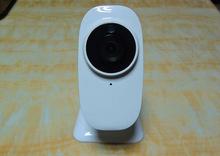
| icloud的摄像头无线网络摄像机立方微型网络摄像机720P,CCTV摄像机,高清camea C100高清摄像头的iCloud 应用: l适用于内部管理,婴儿看护,老人关爱,宠物关怀等。 l适用于小型企业,办公室和地点的高清晰度图像,需要等室内场所。 l适用于仓库,会计室,计算机中心,车库等小规模的地方。 产品特点: 应用升专门Hi3518E SOC解决方案,以确保产品的高绩效。 升P2P技术,也没有在观看视频的智能手机或PC需要路由器和网络设置 l高的高性能SOC,H.264基线,用于保证清晰流畅的网络视频播放Main profile的编码。 规范 名称型号 C100 100Megapixels 1 / 4'CMOS多功能icloud的摄像头 相机 传感器类型 1/4逐行扫描CMOS 最低照度 0.3Lux 透镜 F = 3.6,F = 2.0,水平视角:70度(高度仅2.8mm,4.0毫米,8毫米可选) 日夜切换模式 ICR红外滤在10米的距离的功能。 数字降噪 3D降噪 视频压缩标准 视频压缩类型 H.264 / MJPEG H. 264编码类型 Baseline Profile的/主简介 输出码率 64kbps的-4Mbps的 音频压缩标准 G. 711 / G。726 视频 视频大小 1280×720,640X352 帧速率 25fps的(MAX) 音频 输入 内置麦克风 输出 内置扬声器 网络功能 端口协议 ONVIF 支持协议 以太网协议TCP / IP,HTTP,TCP,ICMP,UDP,ARP,IGMP,SMTP,FTP,DHCP,DNS,DDNS,NTP,UPNP,RTSP 等等 接口 网络端口 1个RJ45 10M / 100M自适应,采用以太网 无线上网 内部无线网络 SD卡 的Micro SD,最大支持32G 电源适配器 DC5V2A±10% 无线偏好 无线标准 Wifi802.11 B / G / N 频率范围 的2.4 GHz〜2.4835 GHz的 安全 一百二十八分之六十四位WEP,WPA / WPA2,WPA-PSK / WPA2-PSK,WPS 传输距离 室外50米,室内15米(敏感的环境变化) 其他要求 智能手机系统需求 需要更高版本的Android 2.2.2和IOS 4.0系统版本 PC系统要求 微软在WinXP,Win7的,IE,火狐,谷歌Chorme 温度和湿度 -10℃〜40Chumidity小于95%(无冷凝) 消费 2-4W(4W运行所有功能) 证书 FCC CE RoHS指令 Packaget 设备大小 80×105 x 125MM(长宽高) 重量 GW:400克/ PCS(注:参见以实际产品为准) 包装尺寸 112 x 97 x 162MM(长宽高) 外箱尺寸 579 x 339 x 215毫米(长宽高); 20PCS /包 iCloudLive相机快速安装指南 打包清单 iCloud的摄像头1个 5V电源适配器1个 以太网电缆1个 螺丝2只 膨胀螺丝2只 快速安装指南1个 1.外观介绍 CDS,镜头,红外灯,麦克风,LAN,SPEAKE,RST / WPS,无线网络指示灯,系统指示灯,LAN指示灯 说明注意事项 LAN / 10M / 100M LAN口 RST / WPS按10秒恢复出厂默认设置/按5秒,进入WPS模式(LED灯闪烁,“成功”是,'失败'关闭) 无线网络指示灯无线工作模式:红色LED亮 LAN指示灯网络运行模式:绿色LED点亮 系统指示灯在正常工作模式:蓝色LED闪烁 2.硬件安装 挂载icloud的相机到墙壁,拧开相机的底部。 随着包括螺钉和锚,拧紧固定托架上在墙上。 然后,重新连接基座盖和螺丝底座背面上安装支架。 3.硬件连接 插上电源适配器,然后连接相机和LAN口路由器与以太网电缆。 (注:请确保DHCP是在你的路由器) 4.智能手机应用程序 4.1。 搜索应用商店,谷歌播放等下载并安装iCloudLive。 IOS安卓 4.2当iCloudLive应用程序安装成功,下面的图标将显示。 4.3运行应用程序,请单击+,选择LAN加(建议) - )搜索摄像机 - )选择ID号,输入密码(默认密码:admin) - ),那么你可以享受我的相机。 备注:您还可以使用“扫描QRCode的加法”或“手动输入ID”(在相机机身QRCode的和身份证号码)。 4.4按6DDK} G3JPQE(M0PDQW〜42`7进入参数设置,如修改密码,视频质量设置,图像翻转,环境模型,无线网络设置,运动检测和记录设置等。 4.5无线设置:输入无线网络设置参数设置下,选择正确的WiFi网络,输入密码,然后点击“加入”或“确定”。 (后无线网络设置,就可以拔掉网线,系统会自动切换到无线模式50秒)。 5. PC应用程序 5.1。 从云驱动器或官方网站下载“iCloudLive用于PC”(请参阅最后一页的“环保下载”)。 5.2。 安装iCloudLive的电脑并运行它。 5.3。 登录iCloudLive的PC,然后单击J(下0))〜78EYI〜XWNEYD)`WA2添加的摄像头,下面的界面。 点击“搜索”按钮,在同一局域网内所有摄像机ID将显示(注:也可以,可以在相机的不干胶贴纸上找到手动输入身份证号码),最后输入密码(默认密码:admin),然后点击 “保存”,然后双击摄像机ID在设备列表中,开始你的相机。 6.常见问题解答 Q1:为什么系统提示该相机是离线添加摄像机ID后? 答:请点击软件的“重新连接”,或检查摄像机的电源,如果网络连接是否正常。 Q2:为什么有时观看视频时的时间差? 答:请检查您的网络连接,或在高级设置中设置了视频质量“低”格局。 Q3:我能做些什么,如果我忘记了摄像头的密码? 找到“WPS / RST”本机上的按钮,按下它至少10秒,同时充电,然后释放,等待30秒后,系统会自动恢复出厂默认的用户名/密码:admin。 环境保护下载 扫描下面二维码,您的智能手机下载数据或输入网址在您的电脑浏览器和下载数据。 |
| icloud Camera wifi ip camera Cube mini ip camera 720P, CCTV cameras , HD camea C100 HD iCloud Camera Application: l Suitable for house keeping, baby sitting, elder caring, pet caring, etc. l Suitable for small business, office and other indoor places where high definition image is required. l Suitable for warehouse, accounting office, computer center, garage and other small-scale places. Product Features: l Specialized Hi3518E SOC solution applied to ensure high product performance. l P2P technique and no need router and network setup while watching video on smart-phone or PC l High-performance SOC, H. 264 base line, Main profile encoding applied to ensure clear and smooth internet video playing. Specification Name Model C100 100Megapixels 1/4'CMOS multi-functional icloud camera camera Sensor type 1/4 Progressive Scan CMOS Minimum illumination 0.3Lux Lens f=3.6, F=2.0, Horizontal angle of view: 70 degrees (2.8mm, 4.0mm, 8mm optional) Day and night switch mode ICR infrared filter functional within 10 meters distance. Digital denoise 3D denoise Video compression standard Video compression type H. 264/ MJPEG H. 264 encoding type BaseLine Profile/ Main Profile Output bit rate 64kbps-4Mbps Audio compression standard G. 711/ G. 726 Video Video size 1280x720, 640X352 Frame rate 25fps (MAX) Audio Input Built-in Microphone Output Built-in Speaker Network functions Port Protocol ONVIF Support Protocol Ethernet protocol TCP/ IP, HTTP, TCP, ICMP, UDP, ARP , IGMP, SMTP, FTP, DHCP, DNS, DDNS, NTP, UPNP, RTSP etc Interface Network port 1 pc RJ45 10M/ 100M self-adopt Ethernet WiFi Inside Wi-Fi SD card Micro SD, Max support 32G Power Adapter DC5V2A±10% WiFi preference Wireless standard Wifi802.11 b/ g/ n Frequency range 2.4 GHz ~ 2.4835 GHz Security 64/128-bit WEP, WPA/ WPA2, WPA-PSK/ WPA2-PSK, WPS Transmission distance Outdoor: 50 meters, indoor: 15 meters (sensitive to environmental change) Other requirements Smartphone system requirement Need system version above android 2.2.2 and IOS 4.0 PC system requirement Microsoft WinXP, Win7, IE, FireFox, Google Chorme Temperature and humidity -10C~40Chumidity less than 95% (No condensation) Consumption 2-4W (4W for running all functions) Certificates FCC CE RoHS Packaget Device Size 80 x 105 x 125MM (LxWxH) Weight GW: 400g/ PCS (Note: Refer to real product) Package Size 112 x 97 x 162MM (LxWxH) Carton Size 579 x 339 x 215MM (LxWxH) ; 20PCS/ package iCloudLive Camera Quick Installation Guide Packing list iCloud camera 1pc 5V Power Adapter 1pc Ethernet Cable 1pc Screws 2pcs Expansion screws 2pcs Quick Installation Guide 1pc 1. Appearance introduction CDS, Lens, IR LED, Microphone, LAN, Speake, RST/ WPS, WiFi indicator, System indicator, LAN indicator Describe Note LAN/ 10M/ 100M LAN port RST/ WPS Press 10 seconds to restore factory default settings/ press 5 seconds to enter WPS mode (LED light flashes, 'Success' is on, 'Failure' is off) WiFi indicator WiFi operation mode: Red LED is on LAN indicator Network operation mode: Green LED is on System indicator Normal work mode: Blue LED is flash 2. Hardware installation To mount the icloud camera to a wall, unscrew the base of the camera. With the included screws and anchors, fasten the mounting bracket on to the wall. Then, reattached the base cover and screw the stand back on to the mounting bracket. 3. Hardware connection Plug in power adaptor, then connect Camera and the LAN Port of Router with Ethernet cable. (Note: Please make sure DHCP is on in your router) 4. Smartphone application 4.1. Search the App Store, Google Play etc. to download and install iCloudLive. IOS Android 4.2 When iCloudLive app is installed successfully, the following icon will display. 4.3 Run App, click +, select LAN Addition (Recommendation) - ) search Camera - ) select ID number, enter the password (the Default password: admin) - ) then you can enjoy my camera. Remark: you can also use 'Scan QRCode Addition' or 'Manual input ID' (QRCode and ID number on body of the camera) . 4.4 Click 6DDK}G3JPQE (M0PDQW~42`7 to enter parameter setting such as modify password, video quality setting, image flip, environment model, WiFi setting, motion detection and recording setting, etc. 4.5 WiFi Setting: Enter WiFi Setting under Parameter Setting and select the correct WiFi network, input the password and click 'Join' or 'Ok'. (After WiFi setting, you can unplug the network cable and system will automatically switch to WiFi mode 50 seconds) . 5. PC application 5.1. Download 'iCloudLive for PC' from cloud driver or official websites (pls see the last page 'Environmental Protection Download') . 5.2. Install iCloudLive for PC and run it. 5.3. Login iCloudLive for PC and click J (0) ) ~78EYI~XWNEYD) `WA2 to add camera with below interface. Click 'search' button, all camera IDs in the same LAN will show (Remark: you can also manually input ID number which can be found on the sticker of the camera) , finally enter the password (the default password: admin) and click 'save', and double-click the camera ID in the device list to start your camera. 6. FAQ Q1: Why system prompted that camera is off line after camera ID added? A: Please click software 'reconnect', or check the camera power supply and if network connection is normal. Q2: Why sometimes there is time-lag when watching the video? A: , Please check your network connection or set up video quality to 'low' pattern under advanced setting. Q3: What can I do if I forgot the camera password? Find the 'WPS/ RST' button on the unit, press it at least 10 seconds while charging, then release and wait for 30 seconds, system will automatically restore factory default username / password: admin. Environmental Protection Download Scan below QR Code with your smartphone to download data or input the website address in your computer browser and download data. |

&img=www.atupapa.com/show/wxbuyer/img/apk.png&url=//www.atupapa.com/show/wxbuyer/whatnear.apk)