Features
| Long strong 3D optimization technology
Long-LKV7600 uses patented video converter with 3D optimization technology clear and vivid picture vividly demonstrated in front of you., Set motion optimization, color optimization, digital noise reduction and integration in one, to create a high-resolution, flicker-free image effect; compared to playing on the TV game, less radiation, the picture is more clear and bright, more suitable for prolonged use, protect you and your family's eyes. | | Pure hardware conversion, entertainment / work smart switch
Pure hardware design, directly connected to the monitor and the game can be used without having to install any software. Simple and quick on your monitor to play high-definition games.
Can be connected to PS2, PS3, XBOX, XBOX360, Wii, GameCube and other gaming equipment, computers, game screen via the button switch, allowing you to enjoy work, enjoy entertainment! | | HD Video Converter
YPbPr input: 480i, 480p, 576i, 576p, 720p, 1080i, 1080p
VGA output: 640 X 480; 800 X 600; 1024 X 768; 1440 X 900; 1400 X 1050, 1600 X 1200; 1680 X 1050; 1920 X 1200; 1280 X 768;
Long-LKV7600 highest support 1920 * 1200 will be even more exciting show fine quality, detail the advantages apparent support 17 ', 19', 21 ', 22', 24 ', 27', 28 'such as liquid crystal display that supports 16: 1016: 94: 3 display modes to suit your varied selection |
|
Connection diagram
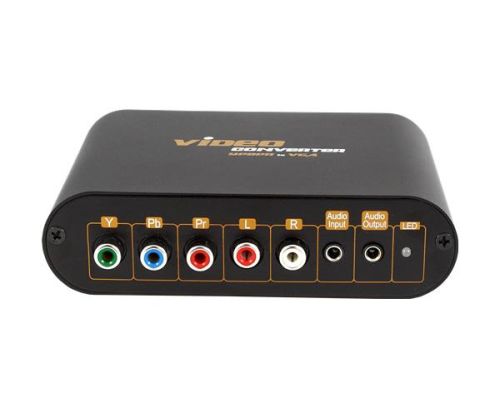
Interface Description
name | Description | (1) YPbPr | Connected with YPbPr input interface devices (such as DVD, XBOX, etc.) | (2) L / R | YPbPr device connected to the left / right audio input | (3) Audio Input | PC connected to the audio input | (4) Audio Output | Then the audio output | (5) LED | Work light (red light: as the host VGA input; green light: YPbPr input;) | (6) Menu / Up / Down | Function keys | (7) DC / 5V | Then the power | (8) VGA-IN | VGA interface connected to the host | (9) VGA-OUT | VGA monitor connection |

name | Description | (1) MENU | - Press once to display the OSD menu;
- Press for three seconds, the input VGA and YpbPr switching output;
- Press ten seconds, video converter resolution back to the default value of 1024 * 768 | (2) UP | - In the OSD menu, press to move up a finger to select items for each function;
- Making brightness, contrast, color saturation, when the hue adjustment, press this button to increase each adjustment
The value of the item;
- When the resolution is set, press to select the resolution value to be set up;
- When no OSD menu, press to be 4: 316: 9, full screen display options; - When no OSD menu, press this button and hold for 10 seconds, the system reset | (3) DOWN | - In the OSD menu, press to move the finger downward to select items for each function;
- Making brightness, contrast, color saturation, when the hue adjustment, press to reduce each adjustment
The value of the item;
- When the resolution is set, press to select the resolution value to be set down; |
|



&img=www.atupapa.com/show/wxbuyer/img/apk.png&url=//www.atupapa.com/show/wxbuyer/whatnear.apk)