- Marketplace
- Merchants
- Restaurants
- UAE house
- Cloud accounting (GCC VAT)
- Me
- Cart
- My order
- Address book
- Favorite
- Link
- About us
- Download App
- 中文
- Merchant panel
C100 HD Mini Wifi IP Camera Wireless 720P TF SD Card P2P Monitor Network CCTV Security Camera
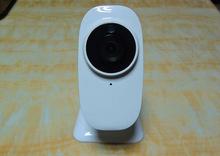
| icloud Camera wifi ip camera Cube mini ip camera 720P, CCTV cameras , HD camea C100 HD iCloud Camera Application: l Suitable for house keeping, baby sitting, elder caring, pet caring, etc. l Suitable for small business, office and other indoor places where high definition image is required. l Suitable for warehouse, accounting office, computer center, garage and other small-scale places. Product Features: l Specialized Hi3518E SOC solution applied to ensure high product performance. l P2P technique and no need router and network setup while watching video on smart-phone or PC l High-performance SOC, H. 264 base line, Main profile encoding applied to ensure clear and smooth internet video playing. Specification Name Model C100 100Megapixels 1/4'CMOS multi-functional icloud camera camera Sensor type 1/4 Progressive Scan CMOS Minimum illumination 0.3Lux Lens f=3.6, F=2.0, Horizontal angle of view: 70 degrees (2.8mm, 4.0mm, 8mm optional) Day and night switch mode ICR infrared filter functional within 10 meters distance. Digital denoise 3D denoise Video compression standard Video compression type H. 264/ MJPEG H. 264 encoding type BaseLine Profile/ Main Profile Output bit rate 64kbps-4Mbps Audio compression standard G. 711/ G. 726 Video Video size 1280x720, 640X352 Frame rate 25fps (MAX) Audio Input Built-in Microphone Output Built-in Speaker Network functions Port Protocol ONVIF Support Protocol Ethernet protocol TCP/ IP, HTTP, TCP, ICMP, UDP, ARP , IGMP, SMTP, FTP, DHCP, DNS, DDNS, NTP, UPNP, RTSP etc Interface Network port 1 pc RJ45 10M/ 100M self-adopt Ethernet WiFi Inside Wi-Fi SD card Micro SD, Max support 32G Power Adapter DC5V2A±10% WiFi preference Wireless standard Wifi802.11 b/ g/ n Frequency range 2.4 GHz ~ 2.4835 GHz Security 64/128-bit WEP, WPA/ WPA2, WPA-PSK/ WPA2-PSK, WPS Transmission distance Outdoor: 50 meters, indoor: 15 meters (sensitive to environmental change) Other requirements Smartphone system requirement Need system version above android 2.2.2 and IOS 4.0 PC system requirement Microsoft WinXP, Win7, IE, FireFox, Google Chorme Temperature and humidity -10C~40Chumidity less than 95% (No condensation) Consumption 2-4W (4W for running all functions) Certificates FCC CE RoHS Packaget Device Size 80 x 105 x 125MM (LxWxH) Weight GW: 400g/ PCS (Note: Refer to real product) Package Size 112 x 97 x 162MM (LxWxH) Carton Size 579 x 339 x 215MM (LxWxH) ; 20PCS/ package iCloudLive Camera Quick Installation Guide Packing list iCloud camera 1pc 5V Power Adapter 1pc Ethernet Cable 1pc Screws 2pcs Expansion screws 2pcs Quick Installation Guide 1pc 1. Appearance introduction CDS, Lens, IR LED, Microphone, LAN, Speake, RST/ WPS, WiFi indicator, System indicator, LAN indicator Describe Note LAN/ 10M/ 100M LAN port RST/ WPS Press 10 seconds to restore factory default settings/ press 5 seconds to enter WPS mode (LED light flashes, 'Success' is on, 'Failure' is off) WiFi indicator WiFi operation mode: Red LED is on LAN indicator Network operation mode: Green LED is on System indicator Normal work mode: Blue LED is flash 2. Hardware installation To mount the icloud camera to a wall, unscrew the base of the camera. With the included screws and anchors, fasten the mounting bracket on to the wall. Then, reattached the base cover and screw the stand back on to the mounting bracket. 3. Hardware connection Plug in power adaptor, then connect Camera and the LAN Port of Router with Ethernet cable. (Note: Please make sure DHCP is on in your router) 4. Smartphone application 4.1. Search the App Store, Google Play etc. to download and install iCloudLive. IOS Android 4.2 When iCloudLive app is installed successfully, the following icon will display. 4.3 Run App, click +, select LAN Addition (Recommendation) - ) search Camera - ) select ID number, enter the password (the Default password: admin) - ) then you can enjoy my camera. Remark: you can also use 'Scan QRCode Addition' or 'Manual input ID' (QRCode and ID number on body of the camera) . 4.4 Click 6DDK}G3JPQE (M0PDQW~42`7 to enter parameter setting such as modify password, video quality setting, image flip, environment model, WiFi setting, motion detection and recording setting, etc. 4.5 WiFi Setting: Enter WiFi Setting under Parameter Setting and select the correct WiFi network, input the password and click 'Join' or 'Ok'. (After WiFi setting, you can unplug the network cable and system will automatically switch to WiFi mode 50 seconds) . 5. PC application 5.1. Download 'iCloudLive for PC' from cloud driver or official websites (pls see the last page 'Environmental Protection Download') . 5.2. Install iCloudLive for PC and run it. 5.3. Login iCloudLive for PC and click J (0) ) ~78EYI~XWNEYD) `WA2 to add camera with below interface. Click 'search' button, all camera IDs in the same LAN will show (Remark: you can also manually input ID number which can be found on the sticker of the camera) , finally enter the password (the default password: admin) and click 'save', and double-click the camera ID in the device list to start your camera. 6. FAQ Q1: Why system prompted that camera is off line after camera ID added? A: Please click software 'reconnect', or check the camera power supply and if network connection is normal. Q2: Why sometimes there is time-lag when watching the video? A: , Please check your network connection or set up video quality to 'low' pattern under advanced setting. Q3: What can I do if I forgot the camera password? Find the 'WPS/ RST' button on the unit, press it at least 10 seconds while charging, then release and wait for 30 seconds, system will automatically restore factory default username / password: admin. Environmental Protection Download Scan below QR Code with your smartphone to download data or input the website address in your computer browser and download data. |

&img=www.atupapa.com/show/wxbuyer/img/apk.png&url=//www.atupapa.com/show/wxbuyer/whatnear.apk)